Skip to content
EG Sigma Community

EG Sigma Community

  • GuidesExpand
    • Kom godt i gang
    • Grundlæggende Sigma
    • Biblioteker
    • Opsætning
    • Import/Eksport
    • 3D Integration
    • Integrationer/Apps
    • LCA
    • Diverse
  • Support
  • Kurser
  • EG.DK
EG Sigma Community
EG Sigma Community

3D Integration

8
  • Type Coding – sammenknyt Revit-modellens objekter med Sigmas bygningsdele
  • Importer fra CAD model
  • BIM 360: Kom godt i gang
  • BIM 360: Installation og opsætning af integrationen
  • Kom godt i gang med Sigma Revit Integration
  • Connect – overfør data mellem Revit og Sigma
  • Connect Settings – opsætning af eksport fra Revit til Sigma
  • Sigma Revit Integration, installation af

Biblioteker

6
  • Opret et nyt bibliotek
  • Rediger dit bibliotek
  • Kopier fra Molio Prisdatabaser (tidl. V&S Prisdatabaser)
  • Opdater fra bibliotek eller prisliste
  • Molio Prisdatabaser – Introduktion
  • Stikordssøgning i Molio-prisdatabase

Diverse

28
  • Mine Sigma-dokumenter bliver ikke åbnet i Sigma
  • Løs problemet “Access violation at address…”
  • Nyt i Sigma Professional CLAIMS Scalepoint 5
  • Tastaturgenveje i Sigma
  • Tilføj prisindeks
  • Tilføj konstanter
  • Automatisk omfordeling
  • Tilføj note, kommentar eller billeder til kalkulationen
  • Sigma 6.0
  • Kør Sigma på Mac computer
  • Bogmærker
  • Nulstil rapport variable
  • Hvordan køres opskrifter på intelligente bygningsdele?
  • Hvordan arrangeres åbne Sigma dokumenter?
  • Viderefør beregninger til brug i Aconto beregning
  • Vis ressourcefordeling
  • Vis formler i indholdsskemaet
  • Ændre betegnelsen for overskrifter i beregningstræet
  • Tilføj ekstra felter/kolonner
  • Slå moms-beregningen fra
  • Udfør stavekontrol
  • Kopier mellem kolonner
  • Ombryd teksten på siden Indhold
  • Automatisk flytning til næste række
  • Sammenlign Sigma filer
  • Successiv kalkulation
  • Intelligente bygningsdele – opskrift til (SigmaScript)
  • EG Sigma Studie-pakke / EG Sigma Educational Package

Grundlæggende Sigma

17
  • Kopier fra tidligere kalkulation
  • Aktiver Sigma-licens
  • Indtastning af sociale ydelser
  • Genskab et tidligere Sigma dokument
  • Juster salgsprisen
  • Fastsæt automatisk fortjeneste (dækningsbidrag)
  • Strukturer kalkulationen
  • Indtast ressourcer
  • Opret en ny kalkulation
  • Udskriv tilbudsbreve, materialelister, mm.
  • Tjek kostpriserne
  • Brug kviksøgning
  • Salgspris via tillæg/fradrag
  • Tilføj ekstra niveau i rapporten Tilbudsbrev
  • Udskriv de samlede byggeomkostninger mm.
  • Hvordan udskrives en vist side
  • Sigma på 2 skærme

Import/Eksport

4
  • Indlæs prisliste (AO eller Brdr. Dahl)
  • Indlæs prisliste CSV
  • Indlæs prisliste med faste kolonnebredder
  • Import af tilbudsliste fra Excel

Integrationer/Apps

9
  • Eksporter til Microsoft Project
  • Eksporter til Microsoft Word
  • Sigma PlanSwift integration – Installation og aktivering
  • Sigma Excel Tender List Designer
  • Sigma Excel Tilbudsliste Designer
  • Sigma Excel Tilbudsliste Tool
  • EG Sigma Visual Administration Integration
  • EG Sigma MesterPriser
  • EG Sigma MesterPriser – Lønninger

Kom godt i gang

5
  • BIM 360: Kom godt i gang
  • Kom godt i gang med Sigma Revit Integration
  • Kom godt i gang: Arkitekt/Rådgiver
  • Kom godt i gang: Håndværker
  • Kom godt i gang: Entreprenør

LCA

11
  • Sæt kalkulation op til LCA
  • Hent generiske GWP-data
  • Hent EPD-data
  • LCA kolonner
  • Sigma LCA – Ordforklaringer
  • Bygningsdele udeladt af klimaregnskab
  • Scenarier til LCA-analyse
  • Brug af LCA-siden
  • LCA Rapport
  • Hent Levetid
  • Kom godt i gang med EG Sigma LCA Værktøj

Opsætning

15
  • Få vist flere kolonner
  • Tilføj en kategori
  • Slet en kategori
  • Udskiftning og sletning af licensnummer
  • Få Sigma til at huske nye kategorier og enheder
  • Ændring af placering af Sigmas filer
  • Fastsæt automatisk fortjeneste (dækningsbidrag)
  • Se hvilken Sigma version du har
  • Flyt dine Sigma-mapper
  • Find licensnummeret til Sigma
  • Flyt licensen til en anden computer
  • Nøgletal i banneret
  • Tilføj logo til rapporter
  • Ændre sprog i Sigma
  • Nøgletal

Release Notes

6
  • Release Notes
  • Release Notes 6.0
  • Release Notes 6.5
  • Release Notes 7.0
  • Release notes – Sigma Autodesk Integration App
  • Release notes – EG MesterData Maler 2.0
View Categories
  • Home
  • Docs
  • Integrationer/Apps
  • Sigma Excel Tender List Designer

Sigma Excel Tender List Designer

7 min read

The Sigma Excel Tender List Designer app is a tool to create Bill of Quantities (hereafter BoQ) in Excel, based on estimating data from Sigma


Sigma Professional, Sigma Enterprise
begynder øvet avanceret

(for installation/uninstallation: scroll down)

How to use Sigma Excel Tender List Designer #

The tool can run in a Standard setup with a few selections – and offers additional Advanced settings #

Run Sigma Excel Tender List Designer tool – Standard #

1.   Start Sigma and open the estimate 
2.   Click Export Bill of Quantities button (Tools ribbon, Excel Bill of Quantities group)
   

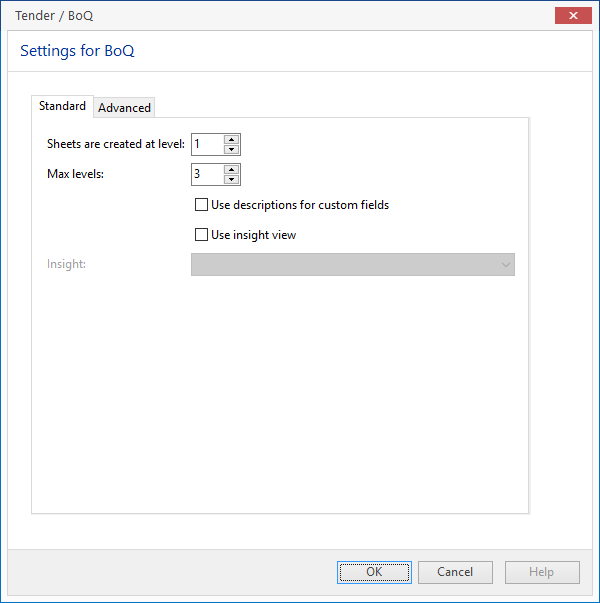
Tender / BoQ dialog box opens

3.   Select Standard tab of Settings for BoQ
  a. Click in Sheet are created at level field and enter level number
   

INFO
Sheets are created at level
controls which level in the Sigma estimate Work Breakdown Structure (WBS) is exported as individual sheets in the Excel BoQ – often set to 1

  b. Click in Max levels field and enter level number
   

INFO
Max levels
controls how many levels (depth) are exported for each sheet in the Excel BoQ, from Sheet are created at level-level and down – often set to 2 or 3

    Additional choices
  c. Select/deselect Use descriptions for custom fields 
   

INFO
Use descriptions for custom fields
controls whether custom field (CF) key descriptions are included or excluded for custom fields exported to Excel BoQ

  d. Select/deselect Use insight view
   

INFO
Use insight view
controls if an insight view is to be used for BoQ structure instead of WBS
If selected, open Insight dropdown menu and select an insight view

4.   Click OK
   

INFO
First time the tools is run for an estimate, you need to select one of following options

Create from standard template which copies a default template file (template_boq.xlsx) to the folder containing the Sigma document (aka estimate) before running the export.

Browse for a template which lets you browse for and select the Excel file, your want to use as template, and run the export

Browse and copy a template which lets you browse for and copy the Excel file, your want to use as template, to be pasted to the folder containing the Sigma document (aka estimate) before running the export.

For subsequent exports the template file i reused


Data is then exported to Excel.
BoQ opens in Excel


Advanced settings #

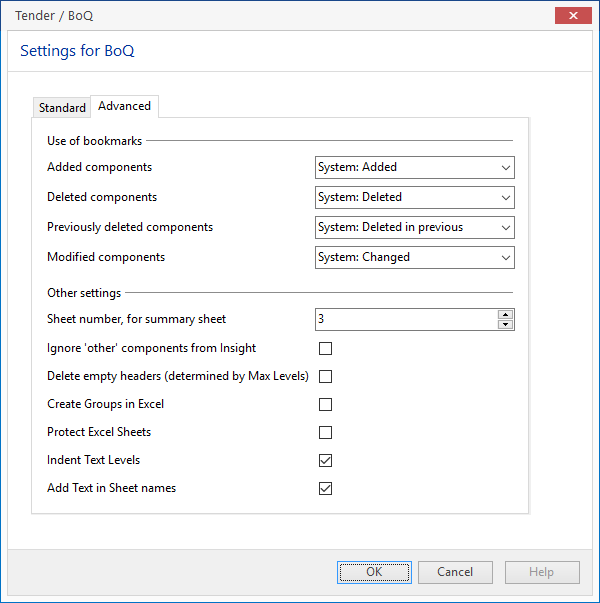
Advanced settings covers

  • Use of bookmarks
  • Other settings (primarily settings for the BoQ Excel file)

Advanced – Use of bookmarks #

Sigma Excel Tender List Designer has default settings of bookmarks for components that are
– added
– deleted
– previously deleted
– modified

These bookmarks can be added to the estimate manually, or automatically via Sigma’s Compare Sigma Files function (Sigma Enterprise ONLY) which adds the bookmarks by comparing current estimate to a previous version of the estimate

The bookmarks can control the layout of the BoQ Excel file – typically background colours of fields (see note on the last page). 

1.   Select Advanced tab of Settings for BoQ
   

Tender / BoQ dialog box opens

2.   Click Added components dropdown field and select the bookmark marking added components
3.   Click Deleted components dropdown field and select bookmark marking deleted components
4.   Click Previously deleted components dropdown field and select bookmark marking components deleted in a previous version
5.   Click Modified components dropdown field and select bookmark marking modified components
   

NOTE

Default Sigma bookmarks are:

“System: Added” for added (new) components

“System: Deleted” for deleted (removed) components

“System: Deleted in Previous” for components deleted (removed) in a previous version of the document (estimate)

“System: Changed” for changed (edited) components


Advanced – Other settings #

1.   Select Advanced tab of Settings for BoQ
   

Tender / BoQ dialog box opens

2.   Do one or more of the following:
  2.1 Click Sheet number, for summary sheet and set which sheet (count from left to right) contains summary parts. Default is the third sheet. 
  2.2 Select / de-select Ignore ‘other’ components from Insight to sets / resets exclusion of other components – as in do not fit criteria of Insight view (same as if Include other of an Insight view is de-selected). Works only if Use Insight view is selected on Standard tab. 
  2.3 Select / de-select Delete empty headers (determined by Max Levels) to sets / resets removal of unused (empty) headers from the estimate, from top to level set as Max levels on Standard tab. 
  2.4 Select / de-select Create Groups in Excel sets (/resets) grouping of components by level in estimate using Excel Outline (group) feature. In Excel, a group of rows can be expanded or collapsed. 
Read more about Outline (group) data in a worksheet. 
  2.5 Select / de-select Protect Excel Sheets sets (/resets) Protect Sheet, without password, to prevent entering data in unwanted cells. 
  2.6 Select / de-select Indent Text levels sets (/resets) indenting text, by level in estimate to improve readability.
  2.7 Select / de-select Add Text in Sheet names sets whether sheets are named by headings in the estimate

Setting up the template Excel file #

Parts of the following is a copy of the documentation, that can be found within the template Excel file itself – parts are additions and elaborations. 

In its original setup the Excel file template_boq.xlsx has 5 sheets, named: 

  • Cover
  • Signature 
  • Summary 
  • Info 
  • Template

Cover sheet #

Instructions for setting up #
  • Insert values in Cells A6, A8, A10 A12, A14, D6, D8, D10
  • Replace shapes with logos and construction images


Advanced export from Sigma to BoQ #

Advanced level

Further, information like Owner Name, Project Name, Contract Number. and Name, Subject, Date, Revision Data and Number, and much more can be exported from the Sigma estimate to the BoQ Excel file, provided 2 conditions: 

  1. The information (data) is saved within the estimate as either a project variable or a project property 
  2. The Excel template file is added commands to receive Sigma project variable/property 

Saving information within the estimate (Sigma document) as project variable or project property demands additional scripting of the estimate’s Frontpage

Generic description

1. Open frontpage script
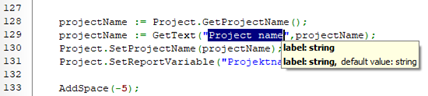
2. Search for needed information (ie. “Project Name”)
3. Search jumps to the first instance of searched text – repeat searching for following instances, until finding:
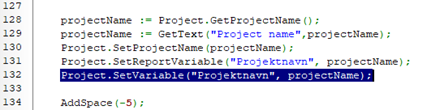
:= GetText(“”, );
4. Add new line below and type:
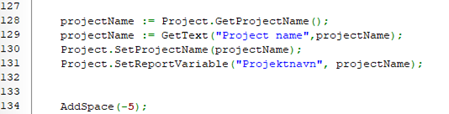
Project.SetReportVariable line (typically 2-3 lines below
5

Add yet another new line below and type one of the following commands to save a variable or a property:

  • Project.SetVariable(“[variable name]“, [script variable name]);
  • Project.SetPropery(“[property name]”, );  
6 Validate, save and close the frontpage script


2.
3.
4.
5.

In this example, the Sigma project variable Projektnavn is now accessible for the tool

To have Projektnavn exported to a specific cell of the Excel Bill of Quantity – ie. Project field (cell A8) of the Cover sheet – this cell A8 must be named – do as follows: 

  1. Select cell 
  1. Click in Name Box, type SIGMA_VARIABLE_Projektnavn and press ENTER 

So syntax for naming an Excel cell is  

  • SIGMA_VARIABLE_[variable name] 
  • SIGMA_PROPERTY_[property name] 

[variable name] / [property name] is the name given in the above step 5

Signature sheet #

Instructions for setting up #
  • Format the sheet as desired
  • Make sure formulas link to Summary page

Summary sheet #

Instructions for setting up #
  • Format the sheet as desired

Info sheet #

Instructions for setting up #
  • Format and add text as desired
  • And format any cell as desired

Template sheet #

Instructions for setting up #
1. In line 5 (row 5), adjust label texts (column headers) as you wish, and adjust colours, fonts, spacing as you like
2.

In line 6 (row 6) controls which columns get exported from Sigma

The default BoQ template Excel file (template_BoQ.xlsx) has following columns, from left to right

 
{Sigma.Number} Sigma’s Number column, which then must contain BoQ codes – alternatively another Sigma column can be appointed
/{Sigma.Text} Sigma’s Text column – in which case Text for each level of BoQ is shown
But text data can be configured individually for each level of BoQ – ie. /{Sigma.CF.Entreprise}/{Sigma.Text} will show Custom Field “Enterprise” for first level, and Text for second level (and following levels) of BoQ
{Sigma.CF.Project.Measurement}

Sigma’s Custom Field Project.Measurement column

for any Custom Field you can control whether key an/or value (description) is shown:

  • CF abc[K] only key is shown
  • CF abc[V] only value is shown
  • CF abc[KV] both key and value is shown

ie. {Sigma.CF.Project.Measurement[KV]}

{Sigma.Quantity} Sigma’s Quantity column
{Sigma.Units} Sigma’s Unit column
{UNITPRICE} the column which will be marked for input – and any background colour will be used in all unit price fields
This column is MANDATORY
{TOTAL} the column that will have formulas for quantity x unit price
This column is MANDATORY
{SUM} the column that will have formulas for summing up
This column is MANDATORY

More Sigma columns can be added to in line 6 (row 6), plus label texts (column headers) in line 5 (row 5)

3. Cells A7:A10 controls the formatting of BoQ levels 1, 2, 3 and 4 (more levels can be added) – primarily background colour (default is grey tones)
4. Cells B7:B10 controls the formatting of the revised (added/deleted/modified) quantities, based on bookmarks in Sigma (see section “Advanced – Use of bookmarks” above) – primarily background colour (defaults are green for added (cell B7), yellow for modified (cell B8), orange for deleted (cell B9) and “no fill” for previously deleted (cell B10))


Installation and uninstallation #

Installation of Sigma App #

1. Go to Sigma Estimates Webshop
2. Download Sigma Excel Tender List Designer package file (Værktøjer section)
3. Open file location for downloaded file
4. Start Sigma application
5. Drag and drop sigmapackage file from download location to Sigma application window
 

Once installed in Sigma the Procore integration can be found in it’s own ribbon


Uninstallation of Sigma App #

1. Start Sigma application
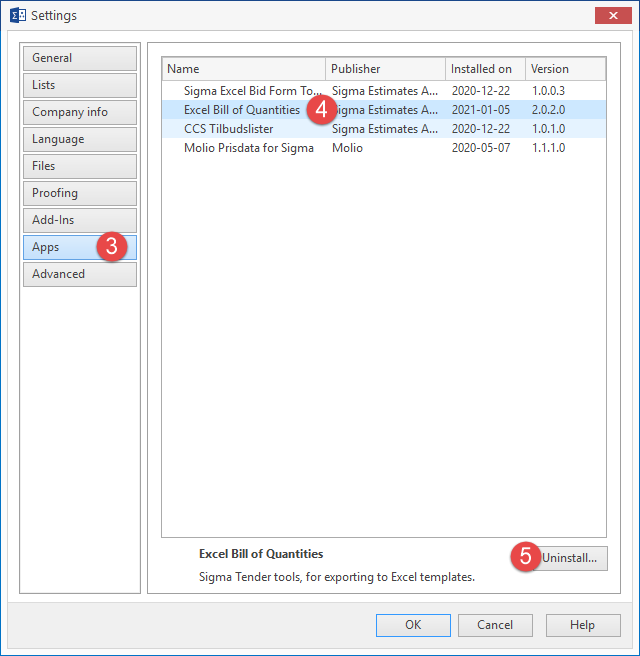
2. Click File > Settings
 

Settings dialog box opens

3. Click Apps tab (left hand side of dialog box)
4. Select Excell Bill of Quantities application
5. Click Uninstall…


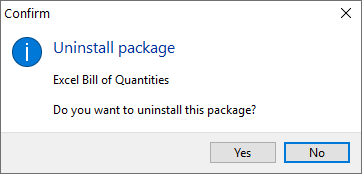
Confirm Excell Bill of Quantities Do you want to uninstall this package dialog box opens


6. Click Yes
 

Uninstall package – Package has been uninstalled information box confirms uninstallation


7. Click OK to close information box
8. Click OK to close Settings dialog box


Updated on January 11, 2021

What are your Feelings

  • Happy
  • Normal
  • Sad

Share This Article :

  • Facebook
  • X
  • LinkedIn
  • Pinterest
Sigma PlanSwift integration – Installation og aktiveringSigma Excel Tilbudsliste Designer
Table of Contents
  • How to use Sigma Excel Tender List Designer
    • The tool can run in a Standard setup with a few selections - and offers additional Advanced settings
    • Run Sigma Excel Tender List Designer tool - Standard
    • Advanced settings
    • Advanced - Use of bookmarks
    • Advanced - Other settings
  • Setting up the template Excel file
    • Cover sheet
      • Instructions for setting up
      • Advanced export from Sigma to BoQ
    • Signature sheet
      • Instructions for setting up
    • Summary sheet
      • Instructions for setting up
    • Info sheet
      • Instructions for setting up
    • Template sheet
      • Instructions for setting up
  • Installation and uninstallation
    • Installation of Sigma App
    • Uninstallation of Sigma App

© 2026 EG Sigma Community

  • Guides
    • Kom godt i gang
    • Grundlæggende Sigma
    • Biblioteker
    • Opsætning
    • Import/Eksport
    • 3D Integration
    • Integrationer/Apps
    • LCA
    • Diverse
  • Support
  • Kurser
  • EG.DK